Step 1: Once you login to the Shark Exchange account, You will receive the pop-up to finish the KYC, Click on "Start KYC"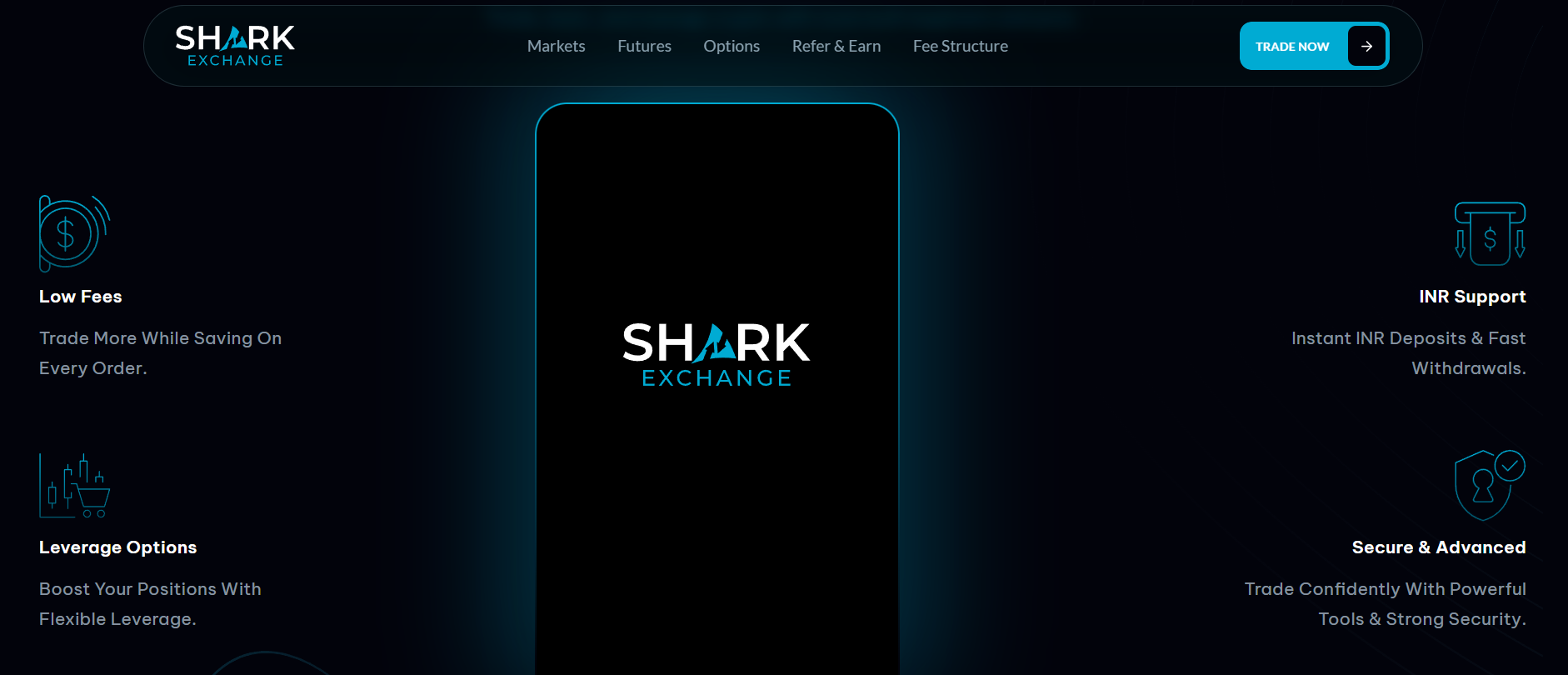
Digilocker Process
Step 2: Verify your Aadhar card using either Digilocker or through OCR, and then provide your PAN number, DOB, and selfie to complete your KYC.
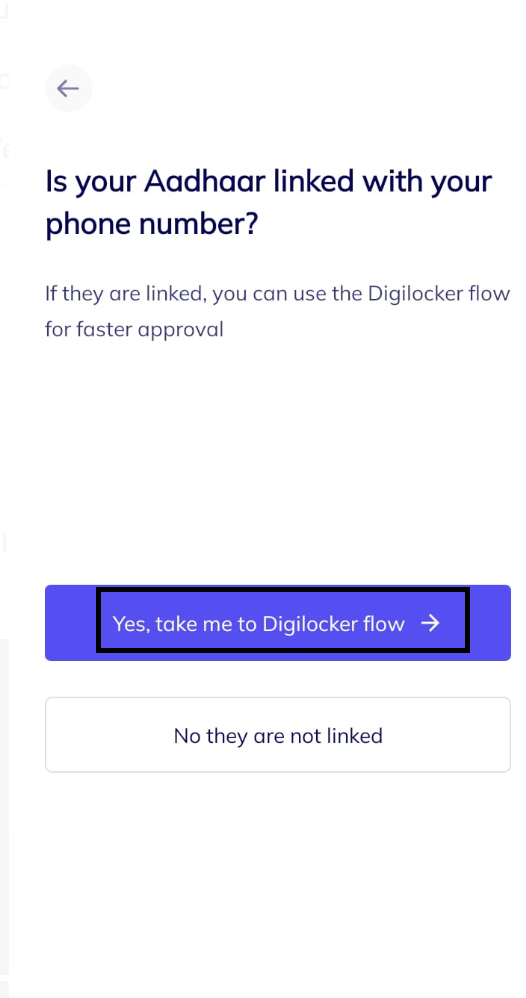
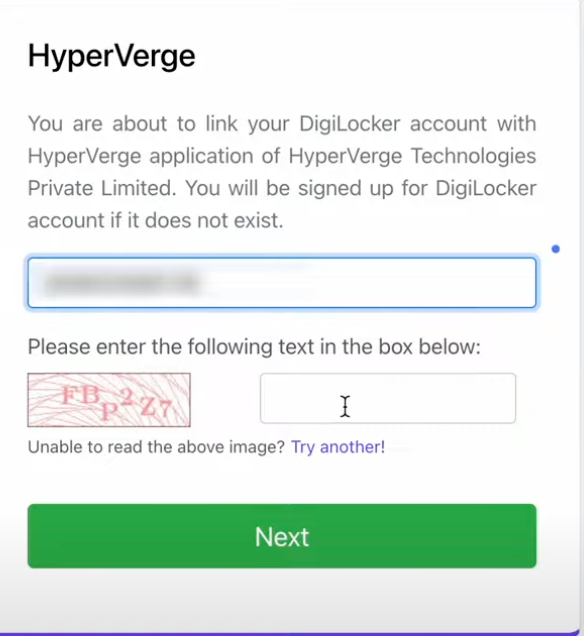
Step 3: If you choose DigiLocker, Enter your 12-digit Aadhar Number
Step 4: Enter the OTP sent to your Registered Mobile Number
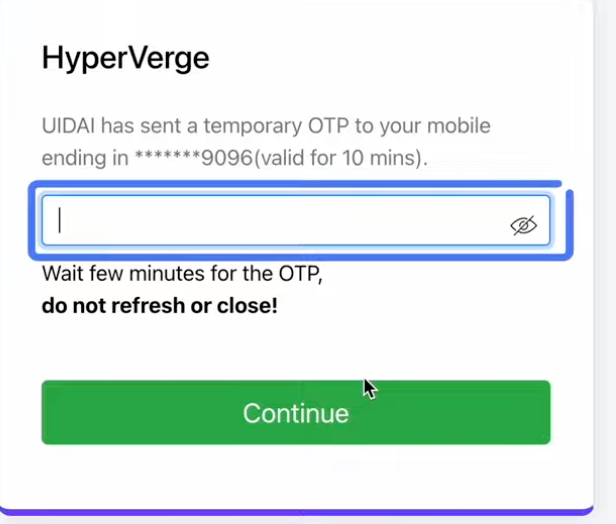
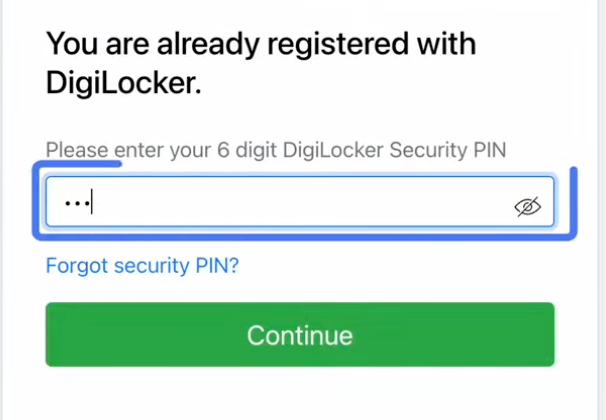
Step 5: Enter your 6-digit Digilocker pin and click on Continue
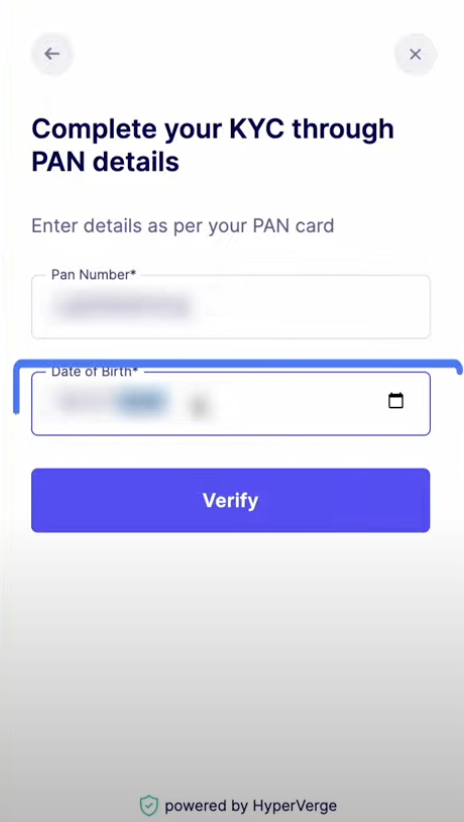
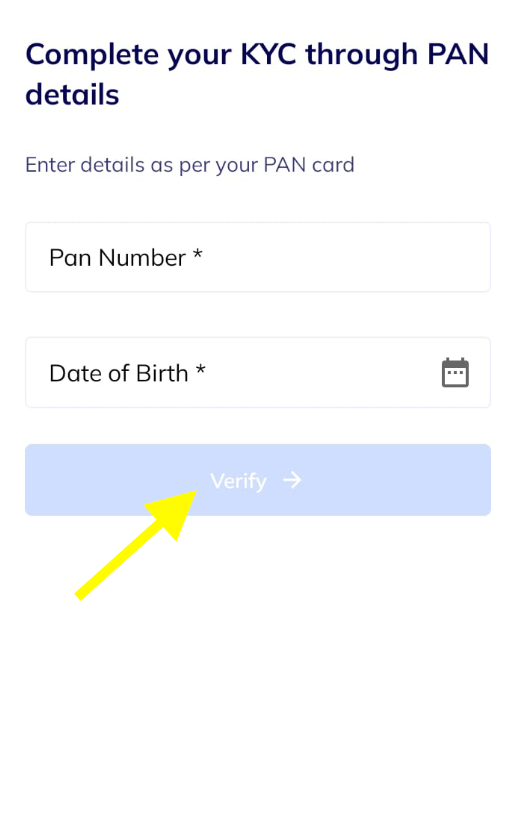
Step 6: Once the aadhar gets verified, you need to enter the PAN and DOB and click on verify
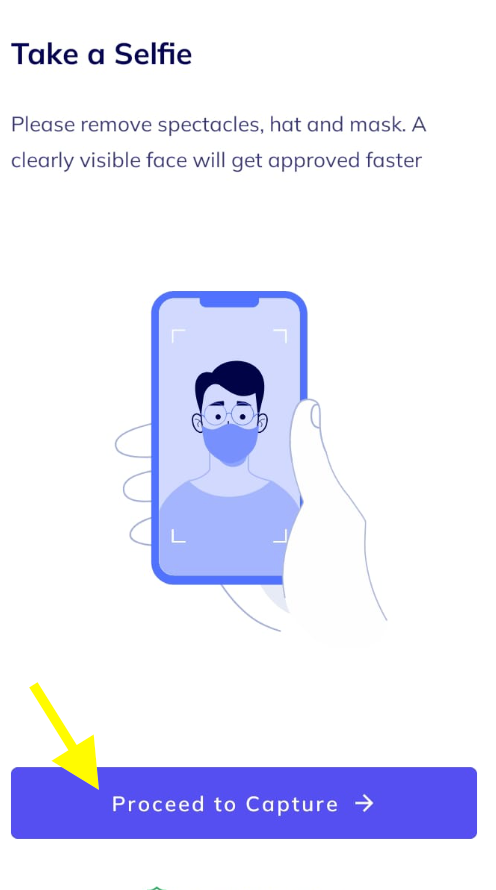
Step 7: Capture a live selfie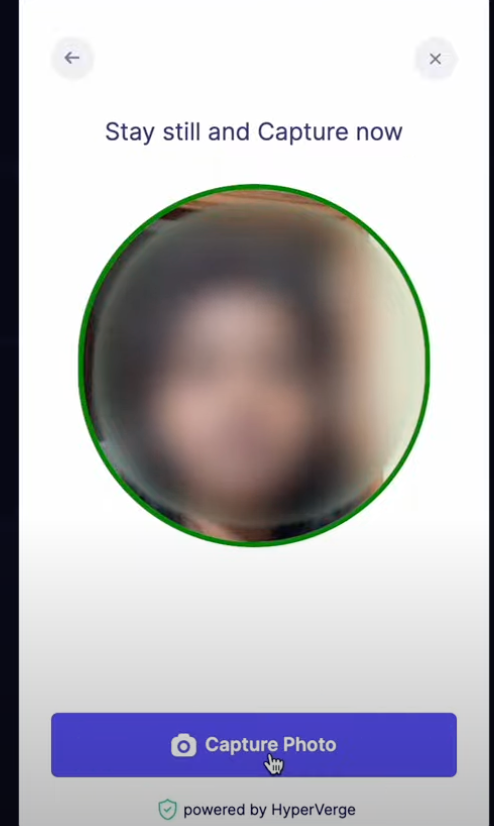
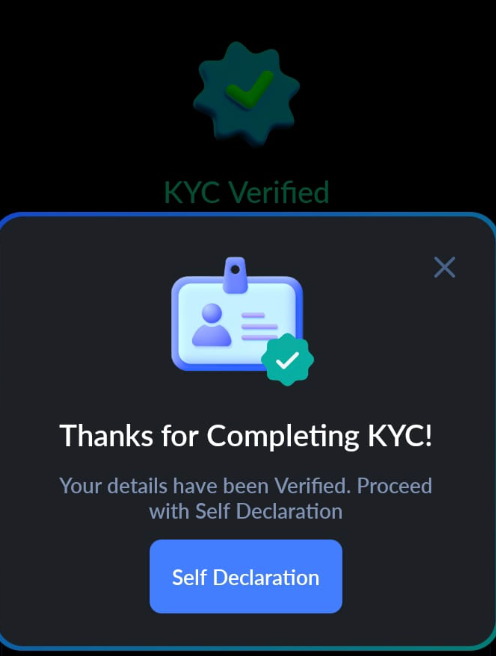
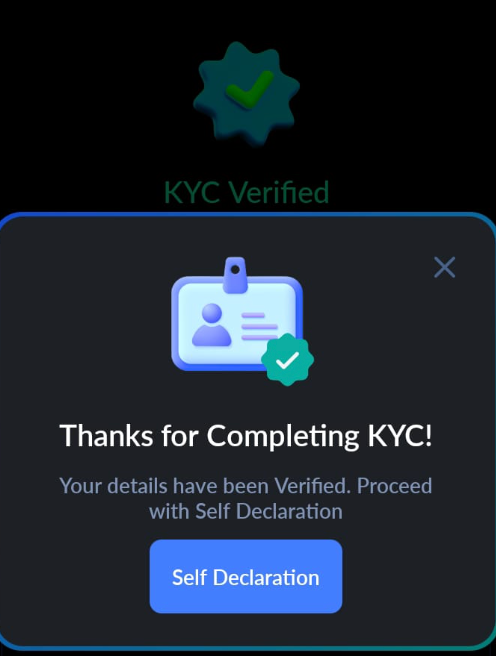
Step 8: You have successfully finished your KYC
Manual Process
Step 1: Once you login to the Shark Exchange account, You will receive the pop-up to finish the KYC, Click on "Start KYC"
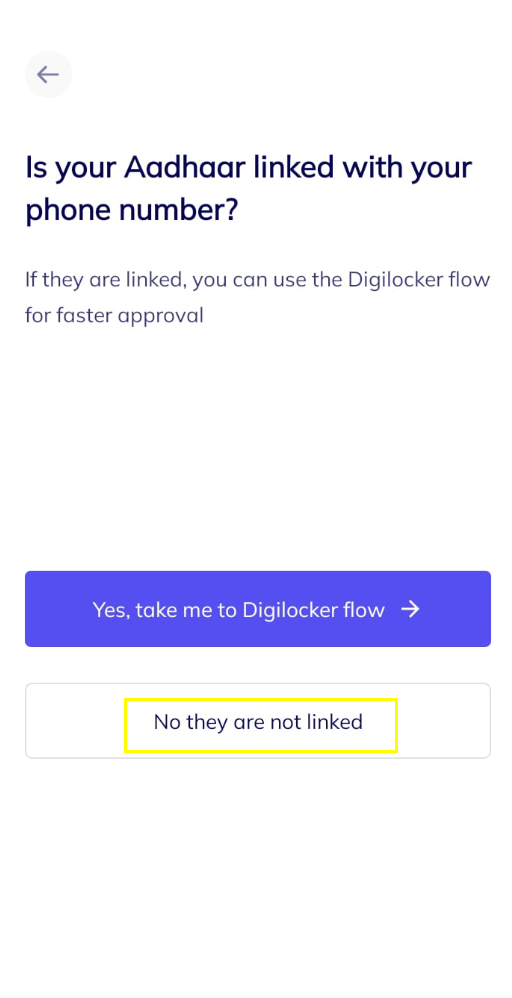
Step 2: If you're not having Digi locker not linked with Aadhar Verify your Aadhar card using through OCR, and then provide your PAN number, DOB, and selfie to complete your KYC.
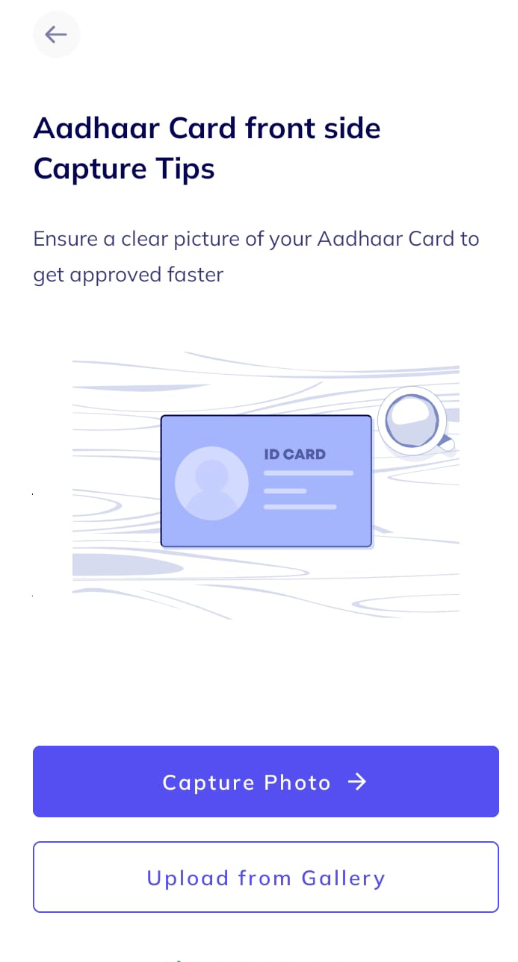
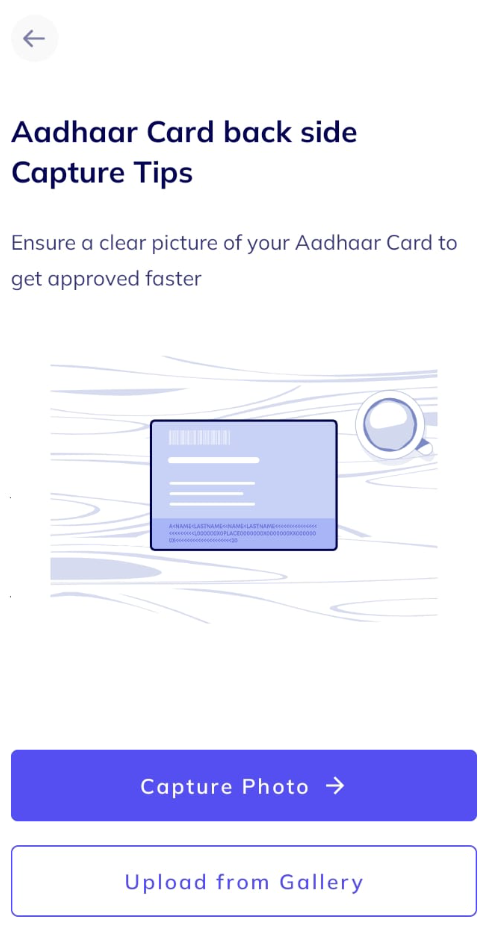
Step 3: Capture or Upload the Front and back of your Aadhar clearly where each details should be visible
Front Side of Aadhar
Back side of Aadhar
Step 4: Enter the PAN number and Date of Birth and click on “verify”
Step 5: Click on Proceed to capture ans Capture a live selfie
Step 6: You have successfully finished your KYC
Was this article helpful?
That’s Great!
Thank you for your feedback
Sorry! We couldn't be helpful
Thank you for your feedback
Feedback sent
We appreciate your effort and will try to fix the article